How to Migrate Lotus Notes NSF to Outlook PST Safely
Posted by Ved prakash
Filed in Technology 411 views
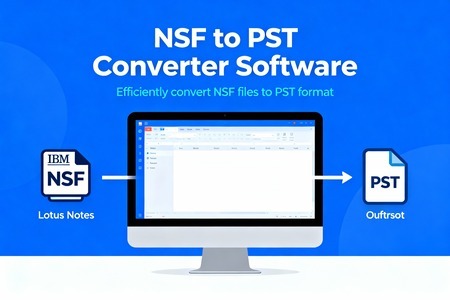
Migrating Lotus Notes NSF files to Outlook PST safely means preserving every email, attachment, contact, and calendar entry without corruption, loss, or broken folder structure. With proper preparation and a careful decision between manual steps and a professional NSF-to-PST converter, you can migrate from HCL Notes to Outlook with confidence.
Why migrate from NSF to PST
Lotus Notes (HCL/IBM Notes) stores mailbox data in NSF files, while Microsoft Outlook relies on PST as its native data file format. Because Outlook cannot open NSF directly, conversion to PST is essential when organizations standardize on Outlook or Microsoft 365.
Typical reasons for migration include:
-
Moving from on‑premises Domino/Notes to Outlook or Exchange/Office 365.
-
Reducing licensing and maintenance costs by consolidating on a single email platform.
-
Improving user experience with Outlook’s familiar interface, search, and integration with other Microsoft apps.
Risks and safety challenges
Manual NSF to PST migration can introduce several risks if not planned correctly. Common issues include missing attachments, broken HTML formatting, incomplete folders, and even data corruption when large mailboxes are handled carelessly.
Other safety challenges are:
-
Loss of folder hierarchy and metadata (read/unread status, timestamps) when using basic export formats like CSV.
-
Time‑consuming, error‑prone steps that become hard to repeat consistently for multiple users.
-
Limited or no support for encrypted or restricted NSF files in purely manual methods.
Pre‑migration checklist for a safe move
A simple pre‑migration checklist dramatically reduces the chance of problems later. Before starting:
-
Back up all NSF databases and verify that the backups are readable and stored safely.
-
Check Lotus Notes, Outlook, and Windows versions to ensure your chosen method or tool supports them.
-
Analyze mailbox size, number of users, and any compliance requirements to decide whether manual steps are enough or a dedicated converter is essential.
Also review:
-
Encryption and access rights on NSF files, especially if some mailboxes contain protected content.
-
Network and storage capacity, as large PST exports require free disk space and stable connectivity when syncing to Exchange or Microsoft 365.
Manual ways to migrate NSF to PST
For very small mailboxes or test scenarios, you can use a two‑step manual path: export from Notes, then import into Outlook. A common approach is:
-
In Lotus Notes, open the NSF, then use the File > Export option to save data as CSV for selected views (such as Mail or Contacts).
-
In Outlook, go to the Import/Export wizard, choose to import from a CSV file, map fields, and place data into a target mailbox or folder, which can later be saved as a PST.
Some guides also mention IMAP‑based migration, where you configure an IMAP account in Notes, sync data, and then connect the same account in Outlook to pull the mailbox into PST. However, both manual methods are slow, require technical skill, and often fail to preserve full formatting, rich HTML content, and all attachments, so they are not ideal for business‑critical or large‑scale moves.
Why are professional NSF to PST tools safer
Specialized vMail NSF to PST converter software is designed to handle full mailboxes and multiple NSF files while preserving data integrity and folder structure. These tools typically support bulk conversion, preview of items, filtering by date or category, and direct export of emails, contacts, calendars, tasks, and journals into PST and other formats.
Key safety‑oriented features include:
-
Maintenance of original hierarchy, metadata, and message encoding for accurate, 1:1 migration.
-
Support for encrypted or restricted NSF files and large databases without size‑related crashes.
-
Options to split oversized PSTs into smaller files and generate detailed logs for auditing.
Best practices for a safe, step‑by‑step migration
To migrate Lotus Notes NSF to Outlook PST safely, combine careful planning with a structured workflow. A practical pattern is:
-
Segment and prioritize mailboxes, starting with a pilot user or test NSF to validate your method and tool settings.
-
Run a trial or demo version of a trusted NSF-to-PST converter to preview content, confirm folder mapping, and test filters before paying for full licenses.
-
Convert mailboxes in batches during low‑usage hours, monitor logs, and verify item counts, attachments, and critical folders after each batch in Outlook.
After conversion, attach the resulting PSTs to Outlook, check search performance, and compare key folders against the original Notes mailbox to confirm that nothing important is missing. Document the final process so it can be repeated consistently for remaining users, reducing variation and risk in future migrations.